Introduction
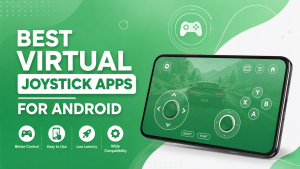
Virtual joystick apps have become a popular alternative to traditional gaming controllers, allowing Android users to enjoy console-like controls without purchasing additional hardware. By turning your smartphone or tablet into a virtual controller, these apps enable you to play PC games, emulators, and cloud gaming titles, and even control compatible Android devices through a touchscreen interface.
Modern virtual joystick apps support Bluetooth, Wi-Fi, and USB connections while offering features such as customizable button layouts, motion controls, low-latency performance, and multiple controller profiles. Whether you’re a casual gamer seeking a simple setup or an enthusiast who wants advanced customization, choosing the right app can significantly enhance your gaming experience.
This guide explores the best virtual joystick apps for Android, compares their key features, and explains what to look for before installing one. You’ll also learn how to configure your first controller profile and optimize your setup for smooth, responsive gameplay.
What Are the Best Virtual Joystick Apps for Android?
A virtual joystick app transforms your Android device into a digital gaming controller that communicates with a PC, another Android device, or supported gaming platforms. Instead of using a physical gamepad, you interact with on-screen joysticks and buttons that send commands wirelessly.
These applications are especially useful for gamers who don’t own a dedicated controller or need a portable solution while traveling. Many also support emulator gaming, allowing users to recreate classic console controls directly on their smartphones.
Below is a quick overview of some of the most popular virtual joystick apps available today.
| VirtualGamePad | General Gaming | Android, Windows | Wi-Fi, Bluetooth |
| DroidJoy | PC Gaming | Android, Windows | Wi-Fi, Bluetooth |
| Monect PC Remote | Gaming & PC Control | Android, iOS, Windows | Wi-Fi, Bluetooth |
| PC Remote | Remote Desktop & Gaming | Android, Windows | Wi-Fi, Bluetooth |
| Ultimate Gamepad | Casual Gaming | Android | Bluetooth |
| Bluetooth Keyboard & Gamepad | Android TV & Keyboard Control | Android | Bluetooth |
Each app offers a different combination of features, so selecting the right one depends on your gaming platform, connection method, and customization requirements.
How Virtual Joystick Apps Work
Virtual joystick apps work by creating a wireless connection between your Android device and another compatible device. Once connected through Wi-Fi or Bluetooth, the app displays a digital controller interface containing joysticks, buttons, triggers, and directional controls.
Every touch you make on the screen is translated into controller input and transmitted to the connected device. Many PC-focused apps require companion software to convert these signals into controller commands that Windows games recognize.
Some applications also include advanced capabilities such as vibration feedback, motion controls, and customizable layouts, making the experience feel closer to using a physical controller.
Because everything happens digitally, you can personalize almost every aspect of the controller without purchasing additional accessories.
Who Should Use a Virtual Joystick App
Virtual joystick apps are designed for anyone who wants greater flexibility while gaming. They are especially useful for users who already own an Android phone but don’t have access to a dedicated game controller.
These apps are suitable for:
- Casual mobile gamers.
- PC gamers who want a wireless controller.
- Emulator enthusiasts.
- Cloud gaming users.
- Students and travelers who prefer portable gaming setups.
They are also helpful for people who occasionally play games and don’t want to invest in expensive gaming hardware.
Whether you’re controlling a Windows PC from your phone or playing retro console games through an emulator, a virtual joystick app offers an affordable and convenient solution.
Benefits of Using a Virtual Joystick on Android
Using a virtual joystick provides several advantages over traditional controllers, particularly for users who value portability and customization.
Instead of carrying extra hardware, your Android phone becomes your controller. Most apps allow you to resize buttons, reposition joysticks, adjust sensitivity, and create multiple controller profiles for different games.
Some of the key benefits include:
| Portable Gaming | Use your smartphone as a controller anywhere. |
| Cost-Effective | No need to purchase a separate gamepad. |
| Custom Layouts | Personalize buttons and joystick positions. |
| Wireless Control | Connect through Wi-Fi or Bluetooth. |
| Emulator Support | Compatible with many retro gaming platforms. |
| Easy Setup | Most apps are ready within minutes. |
These advantages make virtual joystick apps an excellent option for both beginners and experienced gamers.
Best Virtual Joystick Apps for Android
Choosing the right virtual joystick app depends on your preferred games, supported devices, and desired features. Some applications prioritize gaming performance, while others combine controller functionality with remote desktop tools.
The following apps are among the most reliable choices for Android users.
VirtualGamePad
VirtualGamePad is a versatile application that turns your Android device into a responsive wireless controller. It supports multiple connection methods and offers customizable button layouts, making it suitable for PC games, Android games, and emulation.
One of its biggest strengths is its simple interface. Even first-time users can connect their devices quickly without navigating complicated settings. The app also allows players to adjust button placement and save customized controller profiles for different games.
Key Features
- Customizable controller layouts
- Wi-Fi and Bluetooth support
- Multiple controller profiles
- Responsive touchscreen controls
- Simple setup process
Best For: Gamers looking for an easy-to-use virtual joystick with flexible customization.
DroidJoy
DroidJoy is one of the most popular virtual joystick apps for Windows gaming. It focuses on turning your Android phone into a high-performance wireless controller while maintaining low input latency.
The app supports Xbox-style controller emulation, making it compatible with many modern PC games. It also includes vibration feedback, multiple controller profiles, and reliable wireless connectivity.
Because DroidJoy is optimized specifically for gaming, it delivers smoother performance than many general-purpose remote control apps.
Highlights
| Low-Latency Gaming | ✔ |
| Xbox Controller Emulation | ✔ |
| Vibration Feedback | ✔ |
| Multiple Profiles | ✔ |
| Wireless Connectivity | ✔ |
Best For: Windows gamers who want responsive controller performance.
Monect PC Remote
Monect PC Remote combines gaming features with powerful remote desktop functionality. Besides acting as a virtual joystick, it allows users to control their computer, transfer files, use the phone as a keyboard or mouse, and mirror the desktop screen.
The application supports custom controller layouts, gyroscope controls, and multiple connection methods, making it one of the most feature-rich solutions available.
Its flexibility makes it suitable for users who want more than just a gaming controller.
Key Advantages
- Gamepad and keyboard modes
- Custom controller layouts
- Gyroscope support
- Wireless PC control
- File transfer capabilities
Best For: Users who want gaming features alongside complete PC remote control.
PC Remote
PC Remote is another well-known application that lets Android devices act as virtual game controllers for Windows PCs. In addition to gaming controls, it includes remote desktop features, media controls, presentation tools, and keyboard emulation.
The application supports multiple controller layouts and works with many popular PC games. Its clean interface makes navigation straightforward, while Wi-Fi and Bluetooth support provide flexible connection options.
For users who want a single application capable of both gaming and remote computer management, PC Remote is a practical choice.
Why Choose PC Remote?
- Wireless gamepad functionality
- Keyboard and mouse emulation
- Multiple connection methods
- User-friendly interface
- Reliable Windows compatibility
Best For: Gamers who also need remote access to their Windows computer.
Best Virtual Joystick Apps for Android
Ultimate Gamepad
Ultimate Gamepad is a lightweight virtual joystick app built for Android users who want a simple controller without spending time on complicated configuration. The interface is clean, making it easy to pair your device and start gaming within minutes.
Although it doesn’t include as many advanced features as some premium alternatives, it offers reliable performance for casual gaming and emulator use. Users can customize the controller layout, adjust button sizes, and create profiles for different games.
Key Features
- Easy setup process
- Customizable controller layout
- Stable Bluetooth connectivity
- Lightweight application
- Suitable for casual and emulator gaming
Best For: Android users who prefer a simple virtual joystick for everyday gaming.
Bluetooth Keyboard & Gamepad
Bluetooth Keyboard & Gamepad combines keyboard emulation with virtual controller functionality. Besides working as a gamepad, it allows your Android device to function as a Bluetooth keyboard, making it useful for Android TV, media devices, and compatible games.
The app supports customizable controls and offers a straightforward interface that is easy for beginners to understand. While it focuses more on flexibility than advanced gaming features, it performs well for many Android games and basic PC control tasks.
Highlights
| Bluetooth Controller | ✔ |
| Keyboard Emulation | ✔ |
| Custom Controls | ✔ |
| Android TV Support | ✔ |
| Easy Pairing | ✔ |
Best For: Users who need both gaming controls and Bluetooth keyboard functionality.
Key Features to Look for in a Virtual Joystick App
Not every virtual joystick app offers the same level of performance. Before downloading one, compare the features that most impact gameplay, customization, and connection reliability.
Custom Button Mapping
Button mapping allows you to assign specific actions to different controls. Instead of using the default layout, you can move buttons, resize joysticks, and position triggers where they feel most comfortable.
This flexibility is particularly useful for games that require quick reactions or unique control schemes. Many apps also let you save customized layouts, so you don’t have to configure the controller every time you play.
Wireless Connectivity
A reliable connection is essential for smooth gameplay. Most virtual joystick apps support Bluetooth and Wi-Fi, while some also include USB connectivity.
Wi-Fi usually provides lower latency for PC gaming, whereas Bluetooth offers a convenient option for nearby devices. Choosing the appropriate connection method depends on your hardware and gaming preferences.
Multi-Touch and Motion Controls
Advanced virtual joystick apps support multi-touch input, allowing you to press several buttons simultaneously. This is especially useful for action games, racing titles, and multiplayer games that require complex control combinations.
Some applications also include motion controls using your phone’s gyroscope, making steering and aiming feel more natural.
Low Latency and Performance Optimization
Low latency is one of the most important characteristics of a quality virtual controller. Delayed input can negatively affect gameplay, particularly in competitive or fast-paced games.
To improve performance, look for apps that offer:
- Optimized wireless communication.
- Stable controller response.
- Adjustable sensitivity settings.
- Efficient background processing.
- Regular software updates.
These features contribute to smoother gameplay and more responsive controls.
Installation and Initial Setup
Installing a virtual joystick app is usually straightforward, but completing the initial setup correctly ensures better compatibility and fewer connection issues.
Android Requirements
Before installing any app, verify that your Android device meets the recommended requirements. Most applications work best on recent Android versions and require Bluetooth or Wi-Fi support.
You should also ensure that sufficient storage space is available and that your internet connection is stable if downloading companion software.
Download and Install the App
Always download your chosen virtual joystick app from the Google Play Store or the developer’s official website. Avoid unofficial APK files because they may contain outdated software or security risks.
After installation, open the app and complete the basic setup process by accepting the required permissions.
Pair Devices and Grant Permissions
Most virtual joystick apps request permissions for Bluetooth, nearby devices, or network access. These permissions allow the application to communicate with your PC or another supported device.
Follow the pairing instructions carefully and ensure that both devices are connected using the recommended connection method.
Configure Your First Controller Profile
After pairing your devices, create your first controller profile. Adjust the button positions, joystick size, trigger placement, and sensitivity until the controller feels comfortable.
Saving your preferred layout allows you to load it instantly during future gaming sessions.
Customize Your Gaming Controls
Personalizing your controller improves both comfort and accuracy. Most virtual joystick apps provide enough customization options to suit different game genres.
Edit Button Layouts
Move, resize, or reposition buttons according to your preferences. Frequently used controls should remain within easy reach to reduce hand movement during gameplay.
Adjust Sensitivity Settings
Experiment with joystick sensitivity and touch response until movement feels smooth and accurate. Lower sensitivity often improves precision, while higher sensitivity allows quicker reactions.
Create Multiple Controller Profiles
Different games require different layouts. Saving multiple controller profiles allows you to switch instantly between racing, shooting, platform, and emulator games without redesigning the controller.
Save and Export Configurations
Many apps allow you to save or export controller profiles. This feature is useful if you reinstall the app, switch devices, or want to share your layouts with other players.
Performance Optimization and Common Fixes
Even well-designed virtual joystick apps occasionally experience connection or performance problems. Fortunately, most issues can be resolved with a few simple adjustments.
Reduce Input Lag
To improve controller responsiveness:
- Use a stable Wi-Fi connection.
- Keep your phone close to the connected device.
- Close unnecessary background applications.
- Restart both devices before gaming.
- Install the latest version of the app.
These steps usually reduce latency and improve gameplay.
Fix Connection and Pairing Issues
If your controller doesn’t connect:
- Restart Bluetooth or Wi-Fi.
- Remove old paired devices.
- Pair the devices again.
- Confirm both devices are compatible.
- Verify that companion software is running if required.
Most pairing issues are resolved after reconnecting the devices.
Resolve Mapping Errors
If buttons perform incorrect actions, open the controller settings and reset the button mapping. Creating a new controller profile often fixes configuration problems.
Always test the controller before starting a game.
Improve Battery Life with Power Management Tweaks
Gaming can consume significant battery power, especially during long sessions.
To extend battery life:
- Lower screen brightness.
- Disable unnecessary background apps.
- Turn off unused wireless features.
- Charge your device before extended gaming sessions.
- Enable battery optimization where appropriate.
These adjustments help maintain longer playtime without noticeably affecting performance.
Virtual Joystick Apps Comparison
| VirtualGamePad | Android, Windows | Wi-Fi, Bluetooth | ✔ | ✔ | ✔ | Free | General Gaming |
| DroidJoy | Android, Windows | Wi-Fi, Bluetooth | ✔ | ✔ | ✔ | Free + Premium | PC Gaming |
| Monect PC Remote | Android, iOS, Windows | Wi-Fi, Bluetooth | ✔ | ✔ | ✔ | Free + Premium | Gaming & Remote Control |
| PC Remote | Android, Windows | Wi-Fi, Bluetooth | ✔ | Limited | ✔ | Free | Windows Remote Gaming |
| Ultimate Gamepad | Android | Bluetooth | ✔ | Limited | ✔ | Free | Casual Gaming |
| Bluetooth Keyboard & Gamepad | Android | Bluetooth | Limited | Limited | ✔ | Free | Android TV & Keyboard Control |
Conclusion
Choosing the best virtual joystick app for Android depends on your gaming preferences, device compatibility, and the features you need. Whether you’re looking for customizable controls, gamepad emulation, or improved accessibility, the right app can significantly enhance your mobile gaming experience.
If you’re using virtual controller solutions across Android and PC, ViGEmBus provides the reliable driver support needed for many controller emulation tools. At Vigembus, we offer comprehensive guides, installation tutorials, troubleshooting tips, and the latest updates to help you get the most out of your virtual gamepad setup with confidence.
Frequently Asked Questions
What is the best virtual joystick app for Android?
Popular choices include VirtualGamePad, DroidJoy, Monect PC Remote, and PC Remote. The best option depends on your gaming platform and preferred features.
Which app has the lowest input lag?
DroidJoy is widely known for its low-latency performance, especially when connected through a stable Wi-Fi network.
Can I use a virtual joystick without Bluetooth?
Yes. Many virtual joystick apps support Wi-Fi, and some also work over USB.
Do virtual joystick apps work with emulators?
Yes. Most modern virtual joystick apps support popular Android and PC emulators, making them suitable for retro gaming.
Are these apps free?
Most apps offer free versions with essential features. Some also provide premium editions that unlock additional customization and advanced controller options.
How do I update to the latest version?
Visit the Google Play Store, search for your virtual joystick app, and install any available updates. Enabling automatic updates ensures you’re always using the latest version.
Why is my virtual joystick not connecting?
Connection problems are usually caused by incorrect pairing, disabled permissions, outdated software, or network issues. Restarting both devices and reconnecting often resolves the problem.
Which app is best for PC gaming?
DroidJoy and Monect PC Remote are excellent choices for PC gaming because they offer low latency, customizable controls, and strong Windows compatibility.
Latest Posts: