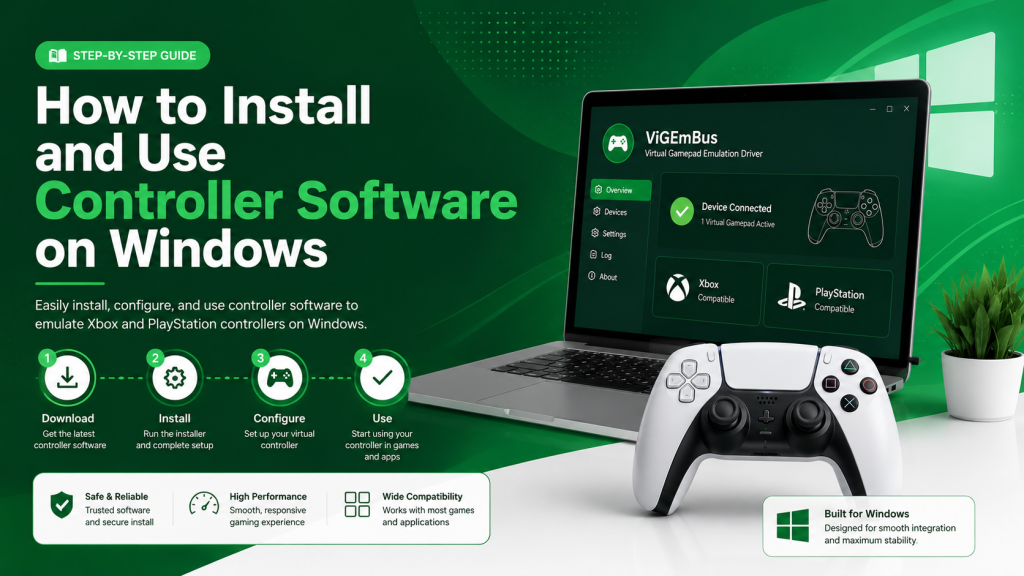
Quick answer: Connect and test your controller before installing anything. Then choose one program for the job: Steam Input for Steam games, DS4Windows for PlayStation-to-XInput support, AntiMicroX for keyboard mapping, or Xbox Accessories for supported Xbox hardware. Install from the developer’s source, create one test mapping, and check for double input.
Your controller connects to Windows, the light turns on, and the game still acts as though nothing is plugged in. Or it works, but every button appears twice. Sometimes the controller is fine, and the real problem is that two different programs are trying to process the same input.
That is why installing controller software should not begin with downloading the first mapper you find. Start by identifying what Windows and the game already recognize. You may only need a different Steam layout. You may need a virtual Xbox controller. Or you may not need extra software at all.
Once you know the missing function, the setup becomes much easier.
Controller software changes how Windows or a game reads input from a gamepad, wheel, joystick, or similar device. It may remap buttons, translate controller actions into keyboard commands, adjust stick behavior, or create a virtual controller that appears to the game as supported hardware.
Choose the Right Controller Software
Different controller programs may look interchangeable because they all mention remapping. They are not.
Steam Input stores layouts around individual games. DS4Windows helps PlayStation controllers work with software that expects Xbox-style XInput. AntiMicroX converts controller presses into keyboard and mouse actions. Xbox Accessories updates and configures supported Xbox hardware.
Choose based on the problem, not the length of the settings menu.
| What you need | Suitable software | What it changes | Recommended for |
| Per-game layouts in Steam | Steam Input | Buttons, sticks, triggers, keyboard commands, and game actions | Players with a mostly Steam-based library |
| PlayStation controller support in XInput games | DS4Windows | Creates Xbox-style virtual output and custom profiles | DualShock and DualSense owners |
| Controller-to-keyboard mapping | AntiMicroX | Converts controller actions into keys, mouse movement, scripts, or macros | Older games and desktop control |
| Official Xbox configuration | Xbox Accessories | Firmware, supported button mappings, sticks, triggers, and vibration | Xbox controller owners |
| Detailed multi-layer profiles | reWASD | Layers, mixed input devices, keyboard mappings, and virtual outputs | Complicated controller setups |
| Generic wheel or joystick support | x360ce | Converts supported inputs into Xbox 360-style controls | Older or unusual DirectInput devices |
| Virtual gamepad driver support | ViGEmBus | Lets compatible applications create virtual Xbox 360 or DualShock 4 devices | Programs that depend on its driver |
Steam Input sits inside the Steam client and processes controller input before passing it to the game. Valve also lets players use shared community configurations rather than building every layout from nothing.
DS4Windows requires more care because several outdated, community-maintained versions are available online. One older repository clearly states that it no longer receives updates, so you should verify the project owner and release history before installing a build.
Check the Controller Before Installing
Do this first. It prevents you from installing a virtual driver to fix what is actually a damaged cable, weak battery, or Bluetooth problem.
Connect the controller through USB if possible. A wired connection removes Bluetooth pairing and wireless interference from the first test.
Press Windows + R, enter the following command, and press Enter:
joy.cpl
Windows opens the Game Controllers panel. Select the device, open Properties, and press each button while moving the sticks and triggers.
If the panel receives the inputs correctly, Windows can see the physical controller. The remaining problem probably sits in the game, launcher, profile, or controller API.
When the controller does not appear, try another USB port and cable. For Bluetooth devices, remove the previous pairing and reconnect the controller. Microsoft’s Windows guidance also recommends checking whether Bluetooth is enabled, updating the Bluetooth driver through the PC manufacturer, and restarting after the driver update.
Do not proceed until Windows consistently detects the device.
How to Install Controller Software
The menus differ between programs, but the safe order stays roughly the same. Keep the first setup plain. Advanced profiles can wait.
1. Identify the Missing Function
Write down the exact problem in one sentence.
Examples:
- “The game sees my DualSense but only accepts Xbox input.”
- “This old game has no controller support.”
- “I want a separate button layout for one Steam game.”
- “Windows does not detect my controller at all.”
The last problem may not require controller software. A mapper cannot repair a failed Bluetooth adapter or a broken USB connection.
2. Remove Conflicting Programs
Close any controller utilities already running in the notification area. Check Task Manager if you are unsure.
You do not necessarily have to uninstall them yet. The goal is to test one input layer at a time.
Steam Input, DS4Windows, reWASD, x360ce, emulator input settings, and game-specific controller support can interfere with one another. When two of these things create or process the input, you might get duplicate button presses or the wrong device prompts.
3. Download From the Project Owner
You can use Steam, Microsoft Store, the developer’s website, or a repository linked by the developer to download what you need.
Avoid pages that put their Download” button above the real link or bundle the program inside another installer. This is because controller software sometimes installs drivers, so where you get it from is important.
For ViGEmBus, you can get it from the repository and release page, which has signed Windows installers. The final release notes say it works with Windows 10 and Windows 11, and the repository has not been changed since November 2, 2023.
4. Read the Installer Prompts
Do not just click through without looking. Check whether the installer will add a driver, a startup task, a desktop shortcut, or an optional component.
Some controller mappers just put files in a folder. Others might install a bus driver or something that hides devices and then ask you to restart your computer.
You should restart when the driver installer asks you to. This is because Windows might not load the virtual device correctly until you do.
5. Connect One Controller
Use one controller during the first setup. Disconnect spare pads, wheels, and wireless adapters that you do not need for the test.
This makes device selection obvious. It also prevents you from mapping the wrong gamepad because Windows assigned it a different slot.
6. Create a Simple Test Profile
Do not build a forty-button profile yet.
Just swap the two face buttons. Map one controller button to a keyboard key that you can see. Save the profile, launch a test screen. Check that the change works.
If you make one change, you can answer three questions: did the software find the controller, did the profile load, and is something else getting in the way of the input.
7. Test Inside One Game
Choose a game that you know well. Check the menus, movement, both sticks, triggers, vibration, and pause controls.
Pay attention to whether the game’s getting movement commands twice. If you press down once and it skips two menu items, the game probably sees both the controller and a virtual copy.
You should fix that problem before you add macros or alternate layers.
Set Up Steam Input
Steam Input is the cleanest starting point when the game sits in your Steam library. You do not need a separate installer, as the configurator is included with the Steam client.
Connect the controller, open Steam, and select the game from your Library. Open its controller settings, enable the appropriate Steam Input option, and edit the current layout.
You can assign controller buttons, keyboard keys, mouse actions, or supported in-game actions. Community layouts are useful when an older title has awkward defaults or no official controller profile.
Before you change everything, test the layout. Steam saves settings for each game, which’s why it does not cause as many problems as a mapper that works with every application.
The problem is not with Steam. Sometimes you can add a game that’s not on Steam, and it will work, but launchers that open another program can prevent the layout from working with the correct program.
Set Up PlayStation Controllers
You can use a DualShock or DualSense controller with some Windows games. Try using it without any help first before you make it work like an Xbox controller.
First, connect the controller to the computer with a USB cord, open the game, and check the controller menu. If the game works with the controller, you might still see PlayStation buttons or special functions that you would not see if you configured it to work like an Xbox controller.
Use DS4Windows when the game ignores the PlayStation controller or expects XInput. Install the version from a source you have checked, open the program, connect the controller, and create a basic profile.
There is a problem when you use both Steam and DS4Windows. Steam might see the real PlayStation controller, and DS4Windows might make it look like an Xbox controller to the game. The people who made Steam say that it can see the fake Xbox controller that DS4Windows makes.
Pick one program to own the mapping for that game. Running both is possible, but most ordinary setups gain nothing from it.
Use Keyboard Mapping Software
AntiMicroX suits games that only understand keyboard and mouse commands. It maps controller buttons and axes to keys, cursor movement, scripts, or macros.
A basic profile might use the left stick for W, A, S, and D, the right stick for mouse movement, and the face buttons for common actions.
This does not make the controller appear as an Xbox device. The game still receives keyboard and mouse commands. That distinction matters in games that switch interfaces depending on the active input type.
Build the profile around the game’s existing key bindings. Changing both the game controls and the AntiMicroX profile simultaneously makes mistakes harder to spot.
For desktop use, reduce the mouse speed and add separate buttons for left-click, right-click, Enter, Escape, and common media controls. It works, though a real mouse still feels better for precise pointer movement.
Understand Virtual Controller Drivers
A virtual controller driver creates a software device that Windows and games treat like physical hardware.
ViGEmBus lets compatible client applications create virtual Xbox 360 and DualShock 4 devices. It is not a profile editor you normally configure on its own; another application communicates with the driver and sends the controller state.
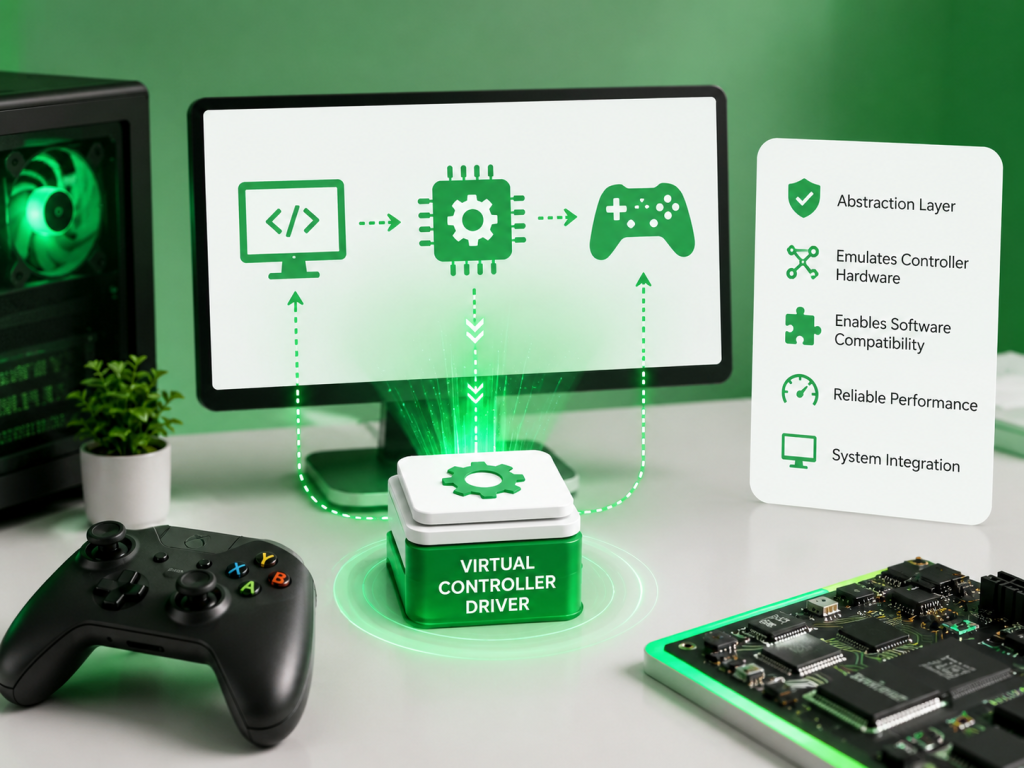
Think of the driver as the connection layer under the controller app. You interact with DS4Windows or another mapper, while the driver presents the resulting virtual device to Windows.
The original project is archived, so do not install it merely because an old guide says every controller setup needs it. Check the current requirements of the application you are using.
The last official release page lists an all-in-one setup that upgrades an existing installation when found. Its release note also states that the installer does not include an automatic updater.
That makes source checking more important. An archived driver should come from the original release page, not a repack with an unknown installer.
Use Controller Software Safely
When you use controller tools, they can start up with your computer, look at everything happening on your system, and install drivers right into the heart of your computer system. You should think of these tools as part of your computer hardware, not something you add to a game.
Before you install a driver on your computer that you do not know much about, create a special backup of your Windows system called a restore point. This helps you get your computer back to normal if something goes wrong after you restart it.
When you are testing your controller, have only one setting active at a time. If you have many things starting up at the same time, it can cause problems like your controller showing up twice or your settings changing without you doing anything.
Make a copy of your controller settings before you update the program. The way the settings are stored might change, and trying to remember how you had everything set up can be a waste of time.
Check these items before installation:
- The thing you are downloading comes from the person who made it or a trusted store.
- The version supports your Windows edition and processor type.
- The installer does not bundle unrelated software.
- The project status is clear: active, community-maintained, or archived.
- You know how to uninstall its driver or restore the previous setup.
Never disable antivirus protection because an unofficial download page tells you to. The x360ce project gives the same advice and recommends digitally signed files.
Does Controller Software Affect Performance?
There is no reliable public test that measures every controller program under the same controller, polling rate, connection type, CPU, and game. A neat chart assigning each program a latency number would be guesswork.
The practical performance differences come from the number of layers and the stability of the connection.
A wired controller using one mapper may feel no different from native input. A Bluetooth controller passing through Steam Input and a second virtual-controller program may show missed presses, duplicate commands, or changing button prompts.
Test the setup through actions you can repeat:
- Tap the same button 10 times quickly.
- Move the stick slowly from the center.
- Press both triggers through their full range.
- Open and close the game twice to check profile loading.
- Confirm that one physical press creates one game action.
No supplied Phase 0 data supports a precise delay figure, and the official sources reviewed do not provide a comparable cross-program benchmark. Measure your actual setup rather than trusting a number collected with different hardware.
Common Problems and Fixes
| Problem | Likely cause | Fix |
| Controller does not appear in Windows | Cable, port, pairing, battery, or device-driver problem | Test USB, change the cable, pair again, and update the PC’s Bluetooth driver |
| Controller works in Windows but not in game | The game expects another input API | Enable Steam Input or use the appropriate virtual-controller output |
| One press registers twice | Physical and virtual devices are both visible | Disable the extra mapper or use the selected tool’s supported hiding method |
| Xbox prompts appear with a PlayStation pad | The mapper presents Xbox-style XInput | Use native PlayStation support where available or accept Xbox prompts |
| Profile does not load | Wrong executable, disabled profile, or failed automatic switching | Select the profile manually and confirm the correct game process |
| Stick moves by itself | Small dead zone or worn hardware | Raise the inner dead zone gradually and retest |
| Bluetooth drops during play | Weak battery, adapter issue, interference, or power settings | Test through USB, update firmware, and review Bluetooth power management |
| Virtual controller never appears | Driver missing, damaged, or blocked | Repair the driver through the controller application and restart Windows |
| Game stops seeing input after an update | Profile, driver, or launcher behaviour changed | Test without the mapper, then re-enable one component at a time |
Do not reinstall everything at once. Close the game, exit all mappers, reconnect the controller, and test upward from the physical device.
Finish the Setup Without Conflicts
Installing and using controller software on Windows comes down to three steps.
Step 1: Test the physical controller before adding software.
Step 2: Choose one tool for the missing function, whether that is Steam layouts, keyboard mapping, PlayStation translation, or official Xbox settings.
Step 3: Create a mapping test it in one game, and only then add advanced controls.
The thing is, Windows updates, game launchers, and controller program versions can change how your setup behaves. So keep the installer source and a copy of your profile. This way, you can undo changes without having to rebuild everything from scratch.
For help with driver setup and controller emulation, visit vigembus.us.
Frequently Asked Questions
Do I need controller software on Windows?
No, not always. Many Xbox. Modern gamepads work with Windows and supported games without any extra program. You only need to install controller software when you want to remap buttons, keyboard inputs create virtual controller output, adjust dead zones, or support a game that does not recognize your physical device.
How do I test a controller in Windows?
You can do this by pressing Windows + R, typing joy.cpl, and pressing Enter. Then select your controller from the Game Controllers window’s Properties, and test the buttons, sticks, and triggers. If the panel receives input correctly, Windows detects the device. The problem probably lies in the game or the mapper.
Should I install Steam Input or DS4Windows?
Use Steam Input first for games inside Steam. Choose DS4Windows when you need Xbox-style output for a game that does not directly support your PlayStation controller. Try not to run both programs against the game unless you understand which one should handle your physical controller.
Why does my controller appear twice?
A mapper may create a virtual controller while the game still sees the physical one. That gives the game two devices from one controller. Close competing mappers, or follow your selected program’s supported method to hide the original device.
Can controller software damage a controller?
The thing is, software that does mapping only changes how your computer reads the input from your controller. It does not actually change your controller in any way. The real risk comes from things like installers or drivers, or from using the wrong firmware tools. Please always get your software from the person who made the project. Do not use any other program to update your controller’s firmware.
Can I map a controller to keyboard keys?
Yes, you can do that. There are programs like AntiMicroX that let you map the buttons and sticks on your controller to keyboard and mouse actions. This is really useful for games that do not support gamepads. The thing is, the game will still think you are using a keyboard; it will not know you are actually using a controller.
Does controller mapping add input delay?
Well, every time you add a layer to something, it takes a little more time. No one answer works for every situation. Things like how your controller is connected, how often it sends information. How the game is made matters. You should try using your controller and see how it works. Try doing the thing over and over and see if there is any delay.
Is ViGEmBus still supported?
The original ViGEmBus website was closed on November 2, 2023. Now it is only for looking at old information. Some programs might still use the ViGEmBus driver. You should check the documentation for your controller program before you install it on a new computer.
Latest Posts: