Introduction
DS4Windows has long been one of the most popular tools for using PlayStation controllers on Windows PCs. It allows DualShock 4 and DualSense controllers to emulate an Xbox controller, making them compatible with games that don’t natively support PlayStation hardware. While DS4Windows remains a reliable option, many users look for alternatives that offer more advanced customization, lower input latency, broader controller support, or simpler setup.
Several modern applications now provide features such as controller remapping, macro creation, profile management, motion controls, and Bluetooth connectivity. Some are completely free, while others offer premium features for gamers who need greater flexibility. The right choice depends on your controller, the games you play, and the level of customization you expect.
This guide explores the best DS4Windows alternatives available for Windows, compares their features, and helps you choose the software that best fits your gaming setup.
What Are the Best DS4Windows Alternatives?
A DS4Windows alternative is software that allows you to connect, configure, and customize game controllers on Windows. These applications support a variety of controllers, including PlayStation, Xbox, Nintendo Switch Pro, and many third-party gamepads.
Some alternatives focus on simple controller mapping, while others offer advanced features such as macro support, per-game profiles, gyro controls, trigger adjustments, and extensive customization options. Choosing the right software depends on whether you want a lightweight controller utility or a complete controller management solution.
The table below provides a quick overview of some of the most popular alternatives.
| reWASD | Advanced customization | PlayStation, Xbox, Switch, Generic | Paid |
| Steam Input | Steam games | Most modern controllers | Free |
| DualSenseX | DualSense features | DualSense | Free + Premium |
| InputMapper | DualShock 4 users | DualShock 4 | Free |
| JoyToKey | Keyboard mapping | Most controllers | Free Trial |
| AntiMicroX | Open-source remapping | Most controllers | Free |
| Xpadder | Legacy controller mapping | Most controllers | Paid |
Each application has its own strengths, making it suitable for different types of gamers.
Why Users Switch from DS4Windows
Although DS4Windows is still widely used, some gamers switch to alternative software for additional features or broader hardware compatibility.
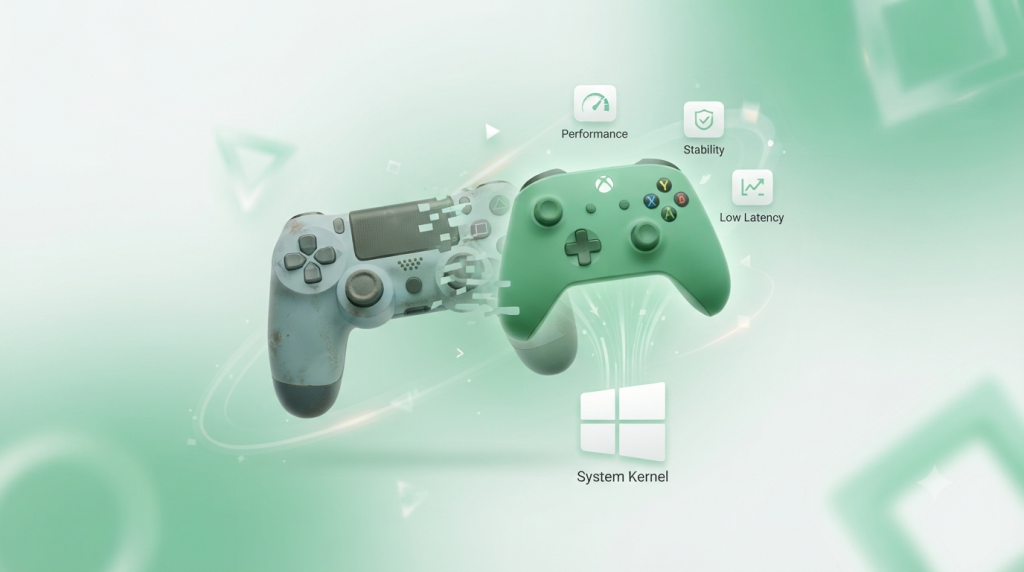
For example, players using multiple controller types may prefer software that supports Xbox, PlayStation, Nintendo Switch, and generic controllers within a single application. Others choose alternatives for easier profile management, built-in macro support, or better compatibility with modern Windows versions.
Common reasons for switching include:
- More controller customization.
- Improved Bluetooth stability.
- Advanced macro creation.
- Better support for DualSense features.
- Easier profile management.
- Lower input latency in specific games.
For users with specialized gaming setups, these improvements can make a noticeable difference during gameplay.
Who Should Use a DS4Windows Alternative
DS4Windows alternatives are suitable for anyone who wants more control over how their game controller behaves on Windows.
They are especially useful for:
- PC gamers using PlayStation controllers.
- Players with multiple controller types.
- Competitive gamers who require low input latency.
- Users who want advanced button remapping.
- Emulator enthusiasts.
- Streamers and content creators with custom controller setups.
Whether you’re playing Steam titles, emulator games, or non-Steam applications, alternative controller software can simplify setup while providing additional customization options.
Key Features to Look For
Not every controller utility offers the same capabilities. Before downloading one, compare the features that matter most for your gaming style.
Important features include:
| Controller Remapping | Customize button functions. |
| Profile Management | Save layouts for different games. |
| Macro Support | Automate repeated actions. |
| Bluetooth Connectivity | Wireless controller support. |
| Low Input Latency | Faster controller response. |
| Multi-Controller Support | Works with different controller brands. |
Choosing software with these features ensures better compatibility and greater flexibility in the long run.
Best DS4Windows Alternatives
The best alternative depends on your controller, preferred games, and desired level of customization. Some applications focus on advanced remapping, while others integrate directly with gaming platforms like Steam.
Below are the leading options available today.
reWASD
reWASD is widely regarded as one of the most powerful controller customization tools available for Windows. Unlike basic remapping software, it allows users to completely redesign controller behavior through advanced button mapping, keyboard emulation, macros, trigger adjustments, and custom profiles.
The software supports PlayStation controllers, Xbox controllers, Nintendo Switch Pro controllers, and many third-party gamepads, making it an excellent choice for users with multiple gaming devices.
One of reWASD’s biggest advantages is its profile system. Players can create unique controller configurations for different games and switch between them instantly.
Key Features
- Advanced button remapping
- Macro and combo creation
- Keyboard and mouse emulation
- Multiple controller profiles
- Broad controller compatibility
Best For: Gamers who need professional-level controller customization.
Steam Input
Steam Input is Valve’s built-in controller configuration system that works directly inside the Steam platform. It supports PlayStation, Xbox, Nintendo Switch Pro, and many generic controllers without requiring additional software for most Steam games.
One of its biggest strengths is game-specific controller profiles. Users can configure different layouts for each title, download community-created profiles, or create their own customized mappings.
Because Steam Input is integrated into Steam itself, setup is generally straightforward and updates are handled automatically.
Highlights
| Game-Specific Profiles | ✔ |
| Community Layouts | ✔ |
| Gyroscope Support | ✔ |
| Steam Integration | ✔ |
| Multi-Controller Support | ✔ |
Best For: Steam users who want built-in controller customization.
DualSenseX
DualSenseX is designed specifically for Sony’s DualSense controller. It enables Windows users to access features that are normally available only on the PlayStation 5, including adaptive triggers, haptic feedback, custom lighting, and battery monitoring.
The software provides an easy-to-use interface while offering advanced customization for supported games. Users can also create controller profiles, adjust trigger resistance, and configure lighting effects according to personal preference.
Although some advanced features require the paid version, the free edition includes enough functionality for most players.
Key Advantages
- Adaptive trigger support
- Haptic feedback configuration
- Battery monitoring
- RGB lighting customization
- DualSense profile management
Best For: DualSense owners who want the complete PlayStation controller experience on Windows.
InputMapper
InputMapper was originally developed as an alternative to DS4Windows for DualShock 4 users and remains a popular choice for gamers who primarily use older PlayStation controllers.
The software allows Windows to recognize a DualShock 4 as an Xbox controller while also providing controller remapping, profile creation, touchpad support, and Bluetooth connectivity.
Although development has slowed in recent years, InputMapper continues to work well for many users running compatible Windows versions.
Its simple interface makes it easy for beginners to configure a controller without navigating dozens of advanced settings.
Why Choose InputMapper?
- Designed for DualShock 4 controllers
- Easy controller configuration
- Bluetooth support
- Touchpad compatibility
- Custom controller profiles
Best For: DualShock 4 users looking for a lightweight DS4Windows alternative.
Best DS4Windows Alternatives
JoyToKey
JoyToKey is a lightweight utility that converts controller input into keyboard and mouse commands. Unlike traditional controller mapping software, it focuses on making games and applications that only support keyboard controls compatible with gamepads.
The software is easy to configure and works with a wide range of controllers, including PlayStation, Xbox, Nintendo Switch Pro, and many generic USB gamepads. Users can create multiple profiles for different games and quickly switch between them whenever needed.
Although its interface looks dated compared to newer alternatives, JoyToKey remains one of the most reliable solutions for controller-to-keyboard mapping.
Key Features
- Keyboard and mouse emulation
- Custom button mapping
- Multiple controller profiles
- Lightweight software
- Broad controller compatibility
Best For: Players who want to use a controller with games that only support keyboard and mouse input.
AntiMicroX
AntiMicroX is a free, open-source controller mapping application designed for gamers who need flexible customization without paying for premium software.
It allows users to map controller buttons to keyboard keys, mouse movements, and shortcuts. The application also supports custom profiles, automatic profile switching, and joystick sensitivity adjustments.
Because it is open source, AntiMicroX receives community improvements and remains a popular choice among users looking for a free alternative to DS4Windows.
Highlights
| Open Source | ✔ |
| Keyboard Mapping | ✔ |
| Mouse Emulation | ✔ |
| Custom Profiles | ✔ |
| Multiple Controller Support | ✔ |
Best For: Users who want a free and highly customizable controller mapping solution.
Xpadder
Xpadder has been a trusted controller mapping tool for many years. It allows almost any controller to emulate keyboard and mouse input, making older games and unsupported applications playable with modern gamepads.
The software includes profile management, customizable layouts, and macro support. Although it is a paid application and receives fewer updates than some newer competitors, it remains reliable for users who need compatibility with older Windows games.
Its simple setup process makes it a good option for users who prefer straightforward controller configuration.
Key Advantages
- Supports many controller types
- Keyboard and mouse emulation
- Macro support
- Custom controller layouts
- Stable performance
Best For: Gamers who play older PC games that lack native controller support.
Compare the Best DS4Windows Alternatives
Choosing the right software depends on your controller, preferred games, and customization requirements. Some applications prioritize advanced remapping, while others focus on simplicity or platform integration.
Controller Compatibility
Controller support should be your first consideration. While some tools focus exclusively on PlayStation controllers, others work with Xbox, Nintendo Switch Pro, and generic USB or Bluetooth gamepads.
If you regularly switch between different controllers, choose software with broad compatibility to avoid installing multiple applications.
Remapping and Macro Features
Advanced remapping lets you assign different functions to controller buttons, while macros automate complex button combinations.
If you play MMO, strategy, or simulation games, macro support can improve efficiency by reducing repetitive actions. For casual gaming, basic button remapping is usually sufficient.
Performance and Input Latency
Controller responsiveness is critical, especially in competitive games.
Applications with optimized drivers and efficient communication generally provide lower input latency, resulting in smoother gameplay and faster reactions.
To improve performance:
- Keep your controller firmware updated.
- Use a stable Bluetooth connection or a USB cable.
- Close unnecessary background applications.
- Install the latest software version.
Free vs Premium Features
Many controller utilities offer free versions with enough functionality for most gamers.
Premium editions often include:
- Advanced macros
- Multiple profile management
- Enhanced trigger customization
- Automatic profile switching
- Additional controller effects
If you only need basic controller mapping, a free application may be sufficient. Advanced users may benefit from premium features.
How to Choose the Right DS4Windows Alternative
Selecting the right application becomes easier once you understand your gaming requirements.
System-Wide vs Game-Specific Mapping
Some applications apply controller mappings across Windows, while others create separate profiles for individual games.
Game-specific mapping is useful if you play multiple genres because each title can have its own optimized controller configuration.
Wired vs Bluetooth Controller Support
Most modern software supports both wired and wireless controllers.
Bluetooth offers greater convenience, while USB connections typically provide slightly lower latency and eliminate battery concerns during long gaming sessions.
Choose the connection method that best matches your setup.
Profile Management and Customization
Profile management allows you to save different controller layouts and switch between them instantly.
This feature is especially valuable if you play racing games, shooters, sports games, and emulators, all of which require different control schemes.
Windows Compatibility and Ease of Use
Before downloading any software, verify that it supports your Windows version.
Applications with clean interfaces, active development, and regular updates generally provide a better long-term experience than outdated software.
Quick Setup Guide
Installing a DS4Windows alternative is usually straightforward.
Install the Software
Download the latest version from the developer’s official website and complete the installation process.
Avoid unofficial downloads to reduce security risks.
Connect Your Controller
Pair your controller using Bluetooth or connect it with a USB cable.
If necessary, install any required drivers before opening the software.
Create Your First Controller Profile
Configure button mapping, joystick sensitivity, trigger behavior, and vibration settings according to your preferences.
Save the profile using a descriptive name so it can be reused later.
Test and Save Your Settings
Before launching a game, test every button to ensure the controller responds correctly.
If adjustments are needed, modify the layout and save the updated profile.
Common Problems and Fixes
Even well-designed controller software can occasionally experience technical issues.
Controller Not Detected
If your controller doesn’t appear:
- Reconnect the USB cable or Bluetooth connection.
- Restart the software.
- Update controller drivers.
- Confirm that Windows recognizes the controller.
Most detection issues are resolved after reconnecting the device.
Double Input or Ghost Input Issues
Double input usually occurs when Windows and the controller software both process the same controller simultaneously.
Disabling duplicate controller input or enabling exclusive mode (when supported) typically resolves this problem.
Bluetooth Connection Problems
If Bluetooth pairing fails:
- Remove previous pairings.
- Restart Bluetooth on both devices.
- Pair the controller again.
- Replace weak batteries if applicable.
Maintaining a stable wireless connection improves controller performance.
Vibration and Haptic Feedback Not Working
Missing vibration is often caused by disabled software settings, outdated drivers, or unsupported games.
Verify that vibration is enabled within the controller software and confirm that the game supports force feedback.
Comparison Table
| reWASD | PlayStation, Xbox, Switch | Windows 10/11 | ✔ | ✔ | ✔ | Very Low | Paid | Advanced Customization |
| Steam Input | Most Modern Controllers | Windows 10/11 | ✔ | Limited | ✔ | Low | Free | Steam Games |
| DualSenseX | DualSense | Windows 10/11 | ✔ | Limited | ✔ | Low | Free + Premium | DualSense Features |
| InputMapper | DualShock 4 | Windows 10 | ✔ | Limited | ✔ | Low | Free | DualShock 4 Users |
| JoyToKey | Most Controllers | Windows | ✔ | ✔ | ✔ | Low | Free Trial | Keyboard Mapping |
| AntiMicroX | Most Controllers | Windows | ✔ | ✔ | ✔ | Low | Free | Open-Source Users |
| Xpadder | Most Controllers | Windows | ✔ | ✔ | ✔ | Low | Paid | Legacy Games |
Conclusion
Finding the best DS4Windows alternatives depends on your needs, whether you want better controller compatibility, improved customization options, lower input latency, or support for additional devices. While DS4Windows remains a popular choice, several alternatives provide enhanced features for modern gaming setups, including better virtual controller support and smoother integration.
For users exploring advanced controller solutions, ViGEmBus is key to enabling reliable virtual gamepad functionality across many controller tools. At Vigembus, we provide helpful guides, setup instructions, and troubleshooting resources to help gamers achieve better controller support and optimize their gaming experience.
Frequently Asked Questions
What is the best alternative to DS4Windows?
For advanced controller customization, reWASD is one of the strongest alternatives. If you primarily play Steam games, Steam Input is an excellent free option.
Is reWASD better than DS4Windows?
reWASD offers more advanced remapping, macro creation, and controller customization. However, DS4Windows remains an excellent free solution for many PlayStation controller users.
Which DS4Windows alternative is free?
Steam Input, InputMapper, and AntiMicroX are free to use, while DualSenseX offers both free and premium versions.
Do these alternatives support DualSense controllers?
Yes. DualSenseX, Steam Input, and reWASD all provide strong support for Sony DualSense controllers.
Can I use them with Steam games?
Yes. Most of these applications work with Steam games, although Steam Input provides the most seamless integration within the Steam platform.
Which software has the lowest input latency?
reWASD and Steam Input generally provide excellent responsiveness when configured correctly and used with stable Bluetooth or USB connections.
Why is my controller not detected?
Controller detection problems are usually caused by outdated drivers, incorrect Bluetooth pairing, USB cable issues, or software conflicts. Restarting both the controller and the software often resolves the issue.
Which alternative is best for Windows 11?
reWASD, Steam Input, and DualSenseX are among the best choices for Windows 11 because they receive regular updates and support modern controller features.
Latest Posts: