Introduction
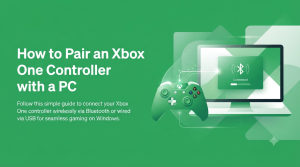
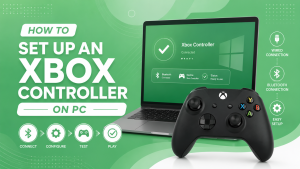
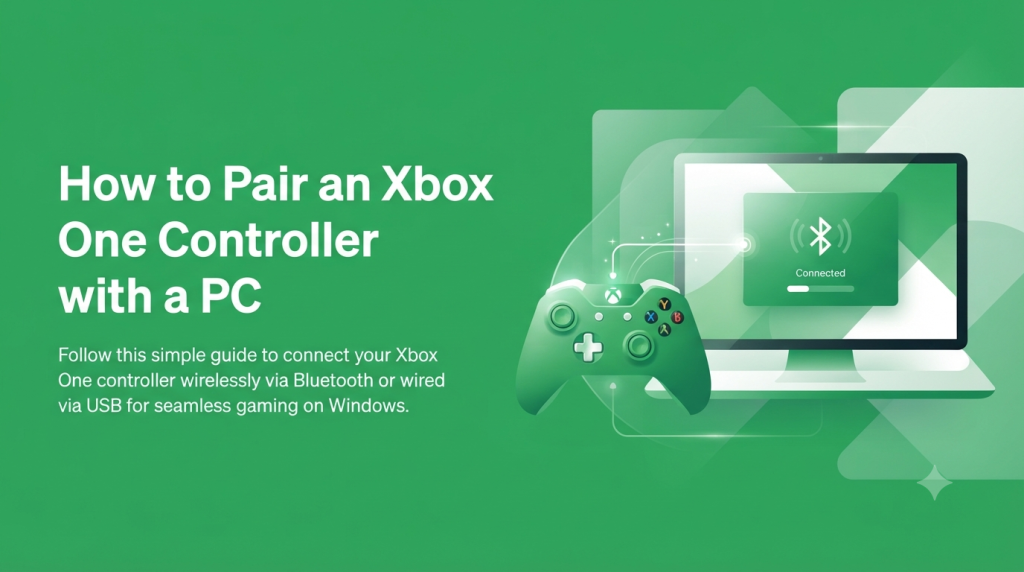
Pairing an Xbox One controller with a PC is a simple process that lets you enjoy a more comfortable and responsive gaming experience. Windows supports Xbox controllers natively, making them an excellent choice for playing racing, sports, action, adventure, and multiplayer games. Depending on your controller model, you can connect it using Bluetooth, a USB cable, or the Xbox Wireless Adapter.
Before you begin, it’s important to know which Xbox One controller you own because not every model supports Bluetooth. Choosing the correct connection method will save time and help you avoid common pairing issues. This guide walks you through every step, from checking controller compatibility to troubleshooting connection problems, so you can start gaming without frustration.
Check if Your Xbox One Controller Supports PC Pairing
Not every Xbox One controller offers the same connection options. While every model can be connected via USB, only newer versions include Bluetooth support. Before pairing your controller with a PC, identify its model and confirm which connection methods it supports. This small step helps you choose the correct setup method and prevents unnecessary troubleshooting.
| Original Xbox One Controller | ✔ | ✘ | ✔ |
| Xbox One S Controller | ✔ | ✔ | ✔ |
| Xbox One X Controller | ✔ | ✔ | ✔ |
| Xbox Elite Series 2 | ✔ | ✔ | ✔ |
Identify Your Xbox One Controller Model
The easiest way to identify your Xbox One controller is by looking at the area around the Xbox button. The original Xbox One controller has a separate glossy plastic section surrounding the Xbox logo. This model does not support Bluetooth, so it can only connect through a USB cable or the Xbox Wireless Adapter.
The Xbox One S, Xbox One X, and Xbox Elite Series 2 controllers have a redesigned front shell where the plastic around the Xbox button blends into the rest of the controller. These versions include Bluetooth support, allowing them to pair directly with compatible Windows PCs. If you’re still unsure, check the model number inside the battery compartment or compare your controller with Microsoft’s official product images.
Check Bluetooth Support
Bluetooth lets you connect your Xbox One controller wirelessly without buying extra accessories. If your controller supports Bluetooth, pairing with Windows is quick and straightforward through the Bluetooth settings menu.
If your controller doesn’t support Bluetooth, you can still connect it successfully using a USB cable or the Xbox Wireless Adapter. Both methods provide a reliable connection, with the USB cable offering the simplest setup and the Wireless Adapter delivering the best wireless performance.
Prepare Your PC Before Pairing
Preparing your computer before pairing the controller helps ensure everything works properly from the start. Checking your Windows version, updating essential software, and placing the controller into pairing mode can prevent many common connection problems.
Taking a few minutes to complete these preparation steps makes the pairing process smoother, whether you’re using Bluetooth, a USB cable, or the Xbox Wireless Adapter.
Check Windows and Bluetooth Compatibility
Xbox One controllers work best with Windows 10 and Windows 11 because these operating systems include built-in support for Xbox accessories. Before pairing the controller, make sure your PC is fully updated.
If you plan to connect wirelessly, verify that your computer has Bluetooth. Most laptops include Bluetooth by default, while some desktop computers require a separate Bluetooth adapter.
Before continuing, check the following:
- Windows is fully updated.
- Bluetooth is enabled (for wireless pairing).
- The controller has enough battery power.
- No other device is currently connected to the controller.
Completing these checks reduces the chances of pairing failures and improves connection stability.
Update Windows and the Xbox Accessories App
Installing the latest Windows updates ensures your PC has the newest controller drivers and compatibility improvements. You should also install the Xbox Accessories app from the Microsoft Store.
The Xbox Accessories app lets you update your controller’s firmware, test button inputs, and customize supported controllers. Updating the firmware before pairing can fix bugs, improve wireless performance, and increase compatibility with Windows.
To update your controller:
- Install the Xbox Accessories app.
- Connect the controller using a USB cable.
- Open the app.
- Install any available firmware updates.
- Wait until the update finishes before disconnecting the controller.
Turn On Pairing Mode
After preparing your PC, the next step is placing the controller into pairing mode.
Press the Xbox button to turn on the controller. Then press and hold the Pair button on the top edge of the controller for about three seconds until the Xbox logo starts flashing rapidly.
The flashing Xbox button indicates that the controller is discoverable and ready to connect to your PC. Keep the controller in pairing mode while you complete the connection process using Bluetooth or the Xbox Wireless Adapter.
Pair an Xbox One Controller with a PC Using Bluetooth
Bluetooth is one of the most convenient ways to pair an Xbox One controller with a PC because it eliminates the need for cables. If your controller supports Bluetooth, you can connect it directly to Windows in just a few minutes. Before starting, make sure Bluetooth is enabled on your computer and your controller is in pairing mode.
Connect the Controller via Bluetooth
Open Settings on your Windows PC and go to Bluetooth & devices. Turn on Bluetooth if it isn’t already enabled, then click Add device and select Bluetooth.
With your controller in pairing mode, Windows will begin searching for nearby devices. When Xbox Wireless Controller appears in the list, click it to start the pairing process. After a few seconds, Windows will complete the connection automatically.
Once the Xbox button stops flashing and remains steadily lit, the controller has been successfully paired with your PC. You can now launch your favorite game and begin playing wirelessly without any additional setup.
Fix Bluetooth Pairing Problems
If your Xbox One controller doesn’t pair successfully, don’t worry. Most Bluetooth issues can be resolved with a few simple troubleshooting steps.
Start by turning Bluetooth off and back on again, then restart both your PC and the controller. If the controller was previously connected to another device, remove that connection before trying to pair it again.
You should also try the following:
- Make sure the controller has fresh batteries or sufficient charge.
- Move the controller closer to your PC during pairing.
- Remove old Bluetooth devices from Windows if the list is full.
- Update Windows and the controller firmware.
- Restart the Bluetooth service if Windows cannot detect the controller.
These steps solve most Bluetooth pairing problems and help establish a stable wireless connection.
Pair an Xbox One Controller with a PC Using a USB Cable
Using a USB cable is the easiest and most reliable way to pair an Xbox One controller with a PC. It doesn’t require Bluetooth, pairing mode, or additional accessories. Simply connecting the controller allows Windows to detect it automatically, making this method ideal for users who want a quick setup or the lowest possible input latency.
Connect with a USB Cable
Use a compatible Micro-USB cable and connect one end to your Xbox One controller and the other to an available USB port on your PC.
Windows will automatically recognize the controller and install the required drivers. Within a few moments, the Xbox button will remain steadily lit, confirming that the controller is connected successfully.
Most modern PC games will detect the controller immediately, allowing you to start playing without changing any settings.
Fix USB Connection Issues
If your controller isn’t detected after connecting it with a USB cable, first check whether the cable supports both charging and data transfer. Some USB cables only charge the controller and cannot establish a data connection.
If the problem continues, try these solutions:
- Use a different USB port.
- Replace the USB cable with a data cable.
- Restart your computer.
- Update Windows to the latest version.
- Reinstall the controller driver through Device Manager.
- Test the controller on another computer to identify whether the issue is with the PC or the controller.
In most cases, changing the cable or USB port resolves the issue quickly.
Pair an Xbox One Controller with the Xbox Wireless Adapter
The Xbox Wireless Adapter is Microsoft’s official wireless solution for connecting Xbox controllers to Windows PCs. It provides a stronger and more stable connection than Bluetooth and supports additional Xbox wireless features. This method is especially useful if your controller doesn’t support Bluetooth or if you want the best possible wireless gaming experience.
Set Up the Xbox Wireless Adapter
Insert the Xbox Wireless Adapter into an available USB port on your computer. Windows will automatically install the required drivers if they are not already installed.
Once the adapter is ready, press the small pairing button on the adapter until its indicator light begins flashing. This means it is ready to detect nearby Xbox controllers.
Pair the Controller
Turn on your Xbox One controller by pressing the Xbox button. Next, press and hold the Pair button on the controller until the Xbox button starts flashing.
Within a few seconds, the controller will automatically connect to the Xbox Wireless Adapter. When both indicator lights stop flashing and remain steady, the pairing process is complete.
The controller is now ready to use with your PC, providing a reliable, low-latency wireless connection with excellent performance.
Troubleshoot Xbox One Controller Pairing Issues
Although pairing an Xbox One controller is usually straightforward, you may occasionally encounter connection problems. Most issues are easy to fix by checking your hardware, updating software, or reconnecting the controller using the correct method.
Controller Not Connecting
If your controller isn’t connecting, first make sure it has enough battery power and is turned on. Verify that Bluetooth is enabled if you’re using a wireless connection, or check that the USB cable is securely connected.
Restart both the controller and your PC, then try pairing again. Updating Windows and the controller firmware can also resolve many connection issues.
Controller Connected but Not Working
Sometimes Windows recognizes the controller, but games don’t respond to button presses.
If this happens, disconnect and reconnect the controller, then restart the game. Open the Xbox Accessories app to verify that button inputs are working correctly.
You should also make sure the game supports Xbox controllers and that no other controller software is causing a conflict.
Input Lag or Random Disconnects
Input lag and random disconnects are usually caused by weak batteries, Bluetooth interference, outdated firmware, or unstable wireless connections.
To improve performance:
- Replace low batteries or recharge the controller.
- Stay within Bluetooth range.
- Update the controller firmware.
- Close unnecessary background applications.
- Use the Xbox Wireless Adapter or a USB cable for the most stable connection.
Following these recommendations can significantly improve controller responsiveness during gameplay.
Conclusion
Pairing an Xbox One controller with a PC is quick and easy, whether you use a USB cable, Bluetooth, or the Xbox Wireless Adapter. Once connected, your controller is ready to use with most Windows games, providing a responsive and comfortable gaming experience. Keeping your controller firmware and PC drivers up to date also helps ensure stable performance and compatibility.
For users who need advanced controller emulation or enhanced compatibility with PC games, ViGEmBus provides the virtual gamepad driver used by many controller management tools. At Vigembus, you’ll find step-by-step tutorials, troubleshooting guides, and the latest resources to help you pair, configure, and optimize your Xbox One controller for the best gaming experience.
Frequently Asked Questions
Can I Pair an Xbox One Controller Without Bluetooth?
Yes. You can pair your Xbox One controller using a USB cable or the Xbox Wireless Adapter. Both methods work without Bluetooth and provide a stable connection.
Why Won’t My Xbox One Controller Pair with My PC?
Pairing problems are usually caused by outdated Windows updates, old controller firmware, Bluetooth issues, low battery power, or incorrect pairing procedures. Restarting the controller, updating software, and reconnecting the device often solve the problem.
Do I Need the Xbox Accessories App?
No, the Xbox Accessories app is not required for basic pairing. However, it is highly recommended because it allows you to update firmware, test controller inputs, and customize supported controllers.
Can I Use More Than One Xbox One Controller on a PC?
Yes. Windows supports multiple Xbox One controllers. You can connect several controllers using Bluetooth, USB cables, or the Xbox Wireless Adapter, depending on your PC’s hardware and the games you play.
Latest Posts: