Introduction
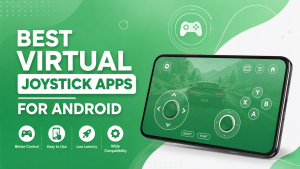
Virtual gamepad apps have changed the way people play games on mobile devices and PCs. Instead of purchasing a physical controller, you can turn your smartphone into a wireless gamepad and use it to control compatible games, emulators, or even your computer. This makes gaming more convenient, especially for users who don’t own a dedicated controller or want a portable alternative.
Most virtual gamepad apps support Wi-Fi, Bluetooth, or USB connections, allowing your phone to communicate with a PC or another device with minimal setup. Many apps also include customizable button layouts, motion controls, vibration support, and controller profiles, making them suitable for different gaming styles.
However, not every virtual gamepad app delivers the same performance. Some focus on low-latency gaming, while others provide better emulator support or advanced customization features. Choosing the right app depends on your device, preferred connection method, and the types of games you play.
In this guide, you’ll discover the best virtual gamepad apps for Android, iPhone, and Windows, compare their features, and learn which app is the right choice for your gaming setup.
What Are the Best Virtual Gamepad Apps for Mobile and PC Gaming?
A virtual gamepad app transforms your smartphone or tablet into a digital gaming controller. After connecting your device to a computer or supported platform, the app displays on-screen buttons, joysticks, triggers, and other controls that function like a physical gamepad.
These apps are popular among casual gamers, emulator users, and PC gamers who want a convenient controller without purchasing additional hardware. While some apps are designed specifically for Windows gaming, others support Android games, cloud gaming platforms, and retro console emulators.
Below is a quick overview of some of the most popular virtual gamepad apps.
| PC Remote | Windows PC Control | Android, Windows | Wi-Fi, Bluetooth |
| Monect PC Remote | Gaming & Remote Desktop | Android, iOS, Windows | Wi-Fi, Bluetooth |
| DroidJoy Gamepad Joystick | PC Gaming | Android, Windows | Wi-Fi, Bluetooth |
| Virtual Gamepad | Simple Controller | Android | Bluetooth |
| Ultimate Gamepad | Casual Gaming | Android | Bluetooth |
| Mobile Gamepad | Emulator Gaming | Android | Wi-Fi |
| Bluetooth Keyboard & Gamepad | Keyboard + Controller | Android | Bluetooth |
How Virtual Gamepad Apps Work
A virtual gamepad app works by establishing a connection between your smartphone and another device, such as a Windows PC. Depending on the application, this connection can be made through Wi-Fi, Bluetooth, or a USB cable.
Once connected, the app displays a virtual controller on your phone’s screen. Every time you tap a button or move the joystick, the app sends that input to your computer or supported game, where it is recognized as a controller command.
Many apps also require a companion program to be installed on your PC. This software receives the commands from your phone and converts them into controller inputs that games can understand.
Some premium apps even support vibration feedback, gyroscope controls, and customizable layouts to provide a more realistic gaming experience.
Why Gamers Use Virtual Controllers Instead of Physical Gamepads
Although physical controllers remain the preferred choice for competitive gaming, virtual gamepad apps offer several advantages that make them attractive to many users.
The biggest benefit is convenience. Instead of purchasing a separate controller, you can use a device you already own. This is particularly useful when traveling or when a physical controller isn’t available.
Virtual controllers are also highly customizable. Many apps allow you to resize buttons, reposition controls, create custom layouts, and save different profiles for various games.
Some additional benefits include:
- No additional hardware required.
- Portable and easy to carry.
- Multiple controller layouts.
- Works with many emulators.
- Affordable compared to physical controllers.
While they may not fully replace dedicated gamepads for competitive play, virtual gamepad apps are more than capable for casual gaming and remote PC control.
Supported Devices, Platforms, and Game Compatibility
Compatibility is one of the most important factors when choosing a virtual gamepad app. Most applications support Android smartphones, while some also provide versions for iPhone, iPad, and Windows.
Game compatibility varies by app. Some focus primarily on PC gaming, while others work better with console emulators or cloud gaming services.
Before downloading an app, check whether it supports your preferred games and operating system.
| Android Phones | ✔ |
| Android Tablets | ✔ |
| iPhone | ✔ (Selected Apps) |
| iPad | ✔ (Selected Apps) |
| Windows PC | ✔ |
| Steam Games | Supported by some apps |
| Retro Emulators | Widely Supported |
Choosing a compatible app from the beginning helps avoid connection problems later.
Explore the Best Virtual Gamepad Apps
With dozens of controller apps available, finding the right one can be difficult. Some prioritize gaming performance, while others focus on flexibility and remote desktop features.
The following apps are among the most reliable options available today.
PC Remote
PC Remote is one of the most versatile virtual gamepad applications available for Windows users. In addition to acting as a wireless controller, it allows users to control their computer remotely via a smartphone.
The application supports multiple controller layouts, keyboard emulation, mouse control, and media controls, making it useful for both gaming and general PC navigation.
Its gamepad mode works well with many PC titles and supports both Wi-Fi and Bluetooth connections, giving users flexibility depending on their setup.
Key Features
- Wireless gamepad mode
- Keyboard and mouse emulation
- Multiple controller layouts
- Wi-Fi and Bluetooth support
- Media and presentation controls
Best For: Users who want both a PC remote control and a virtual gamepad in one application.
Monect PC Remote
Monect PC Remote is another excellent option for gamers looking for an all-in-one remote control solution. It supports gamepad controls, keyboard input, file transfer, and even screen mirroring on supported devices.
One of its strongest advantages is customization. Users can create personalized controller layouts and switch between different control modes depending on the game they’re playing.
The application also includes support for gyroscope controls, making it suitable for racing and motion-controlled games.
Because it combines productivity features with gaming functionality, Monect is popular among both casual users and PC enthusiasts.
Highlights
| Wireless Controller | ✔ |
| Keyboard & Mouse | ✔ |
| Gyroscope Support | ✔ |
| File Transfer | ✔ |
| Custom Layouts | ✔ |
Best For: Gamers who want advanced customization and remote desktop features.
DroidJoy Gamepad Joystick
DroidJoy Gamepad Joystick is designed specifically for users who want to transform their Android phone into a fully functional PC controller.
Unlike many general-purpose remote apps, DroidJoy focuses primarily on gaming performance. It supports low-latency connections, multiple controller profiles, vibration feedback, and compatibility with many modern Windows games.
The application works especially well with games that support Xbox-style controllers, making setup relatively simple for most players.
Another advantage is its lightweight design, which keeps resource usage low while maintaining stable performance during long gaming sessions.
Why Choose DroidJoy?
- Optimized for PC gaming.
- Low input latency.
- Vibration support.
- Multiple controller profiles.
- Reliable wireless connection.
Best For: Windows gamers looking for a responsive virtual Xbox-style controller.
Virtual Gamepad
Virtual Gamepad is a lightweight application designed for users who need a simple controller without spending time on complex configuration.
The interface is straightforward, making it easy for beginners to connect and start playing supported games. While it doesn’t include as many advanced features as some competitors, it performs well for casual gaming and emulator use.
Users can customize button placement, adjust controller sensitivity, and create layouts that suit different game genres. Because of its simple design, the app also consumes relatively little battery power compared to feature-rich alternatives.
Key Advantages
- Simple user interface
- Easy setup process
- Customizable controls
- Lightweight performance
- Suitable for casual gaming
Best For: Beginners who want a straightforward virtual controller without unnecessary complexity.
Explore the Best Virtual Gamepad Apps
Ultimate Gamepad
Ultimate Gamepad is designed for users who want a responsive virtual controller without a complicated setup process. The app offers a clean interface with customizable buttons and supports multiple connection methods depending on the device you’re using. Whether you’re playing casual mobile games or connecting to a Windows PC, it provides a reliable experience for everyday gaming.
One of its biggest advantages is its flexible controller layout. Players can adjust button positions, resize controls, and create personalized profiles for different games. This makes the app suitable for action games, racing titles, and emulator-based gaming.
Key Features
- Custom controller layouts
- Adjustable button positions
- Easy pairing process
- Stable wireless connection
- Beginner-friendly interface
Best For: Players who want a simple yet customizable virtual controller.
Mobile Gamepad
Mobile Gamepad allows users to transform an Android phone into a wireless controller for PC games and emulators. The application focuses on providing responsive controls while keeping the setup process straightforward.
It supports customizable buttons, joystick controls, and multiple controller profiles. Depending on the game, users can create different layouts to improve comfort during long gaming sessions.
Because of its lightweight design, Mobile Gamepad performs well on most Android devices without consuming excessive system resources.
Highlights
| Wireless Controller | ✔ |
| Custom Layouts | ✔ |
| Emulator Support | ✔ |
| Multiple Profiles | ✔ |
| Lightweight Design | ✔ |
Best For: Android users who frequently play emulator and PC games.
Bluetooth Keyboard & Gamepad
Bluetooth Keyboard & Gamepad combines two useful functions in a single application. Besides acting as a virtual game controller, it can also emulate a Bluetooth keyboard for compatible devices.
This makes it particularly useful for Android TV, media devices, and games that support keyboard input alongside controller functionality. The application offers a straightforward interface and works well for users who need both productivity and gaming features.
Although it isn’t designed exclusively for gaming, it provides reliable controller performance for many supported titles.
Key Benefits
- Bluetooth controller support
- Keyboard emulation
- Simple setup
- Stable wireless connection
- Supports various Android devices
Best For: Users who need both keyboard and virtual controller functionality.
Compare the Features That Matter Most
When comparing virtual gamepad apps, it’s important to look beyond basic controller functionality. Factors such as customization, connection quality, platform compatibility, and emulator support can significantly affect your gaming experience.
Controller Layout and Button Customization
Every gamer has different preferences, which is why customizable controls are one of the most valuable features in a virtual gamepad app.
Many apps allow users to move buttons, resize joysticks, change transparency, and create multiple controller profiles. These options make it easier to optimize controls for different game genres, from racing and shooting games to retro emulators.
A well-designed layout also improves comfort during long gaming sessions.
Wireless Connectivity and Low-Latency Performance
A virtual controller is only enjoyable if it responds quickly. Low latency ensures that your button presses are recognized without noticeable delay.
Most modern apps support:
- Wi-Fi connections
- Bluetooth pairing
- USB connections (selected apps)
Wi-Fi generally provides better performance for PC gaming, while Bluetooth offers greater convenience for mobile devices.
Android, iPhone, and Windows Compatibility
Before choosing an app, verify that it supports both your smartphone and the platform you want to control.
Most leading apps support Android, while several also provide versions for iPhone and Windows.
| Android | ✔ Excellent |
| iPhone | ✔ Selected Apps |
| iPad | ✔ Selected Apps |
| Windows PC | ✔ Most Apps |
| Android TV | Supported by some apps |
Selecting a compatible app prevents connection issues and ensures access to all available features.
Supported Games and Emulator Integration
Many virtual gamepad apps work well with popular PC titles, while others are optimized for console emulators.
If you frequently play retro games, check whether the application supports emulators such as PPSSPP, Dolphin Emulator, or RetroArch. Compatibility with Steam games and cloud gaming platforms is another advantage for users who play modern titles.
Optimize Your Virtual Gamepad for Better Gaming Performance
Even the best virtual gamepad app may not perform well if it isn’t configured correctly. A few simple adjustments can improve responsiveness and provide a smoother gaming experience.
Reduce Input Lag and Improve Responsiveness
Input lag is one of the most common complaints among virtual controller users.
To reduce delay:
- Use a fast Wi-Fi connection whenever possible.
- Keep your phone close to the PC.
- Close unnecessary background apps.
- Restart both devices before gaming.
These simple steps often improve controller response immediately.
Apply Battery and Power Management Tweaks
Long gaming sessions can quickly drain your phone’s battery. Enabling battery optimization while allowing the app to run properly helps balance performance and battery life.
Reducing screen brightness, disabling unused wireless features, and closing unnecessary applications can also improve overall efficiency.
Update to the Latest App Version
Developers regularly release updates that improve compatibility, fix bugs, and optimize controller performance.
Installing the latest version ensures your virtual gamepad supports new operating systems, recent games, and the latest security improvements.
Customize Sensitivity and Touch Controls
Sensitivity settings can dramatically affect gameplay.
Experiment with joystick sensitivity, touch response, button size, and trigger placement until the controls feel comfortable for your preferred games.
Saving separate controller profiles for different genres can further improve your gaming experience.
Fix Common Virtual Gamepad Problems
Although most apps are easy to use, occasional technical problems can occur.
Gamepad App Not Connecting to PC or Console
If the connection fails, verify that both devices are connected to the same Wi-Fi network or paired correctly through Bluetooth.
Restarting the application and companion software often resolves temporary connection issues.
Controller Input Delay or Lag
Input lag is commonly caused by weak wireless signals or excessive background activity.
Switching to a stronger network, reducing interference, and updating the app usually improve performance.
Bluetooth, Wi-Fi, and Pairing Issues
If pairing fails, remove the existing connection and pair the devices again.
Also ensure that Bluetooth permissions and network permissions are enabled on your smartphone.
App Crashes, Update Errors, and Compatibility Problems
Unexpected crashes are often caused by outdated software or unsupported operating systems.
Keeping both the app and your device updated is the best way to prevent these issues.
Choose the Right Virtual Gamepad App for Your Needs
Choosing the right app depends on the platform you use, the games you play, and the features you need most.
| PC Remote | Android, Windows | Wi-Fi, Bluetooth | ✔ | ✔ | Limited | ✔ | Free | PC Remote Control |
| Monect PC Remote | Android, iOS, Windows | Wi-Fi, Bluetooth | ✔ | ✔ | Good | ✔ | Free + Premium | Gaming & Productivity |
| DroidJoy Gamepad | Android, Windows | Wi-Fi, Bluetooth | ✔ | ✔ | Good | ✔ | Free + Premium | Windows Gaming |
| Virtual Gamepad | Android | Bluetooth | ✔ | Limited | Moderate | ✔ | Free | Casual Gaming |
| Ultimate Gamepad | Android | Bluetooth | ✔ | ✔ | Good | ✔ | Free | Everyday Gaming |
| Mobile Gamepad | Android | Wi-Fi | ✔ | ✔ | Excellent | ✔ | Free | Emulator Users |
| Bluetooth Keyboard & Gamepad | Android | Bluetooth | Limited | Limited | Moderate | ✔ | Free | Android TV & Keyboard Control |
Tips to Get the Best Gaming Experience
Keep the App Updated for New Features
Installing updates ensures improved compatibility, better performance, and access to newly released features.
Use Stable Network Connections
A stable Wi-Fi connection usually provides lower latency than weak or unstable wireless networks, especially during PC gaming.
Adjust Performance and Battery Settings
Close unnecessary background applications and optimize battery settings to maintain smooth controller performance during long gaming sessions.
Test Controls Before Every Gaming Session
Before starting a game, take a few moments to check button layouts, sensitivity settings, and connectivity to avoid interruptions later.
Conclusion
Choosing the best virtual gamepad apps for mobile and PC gaming depends on your devices, the games you play, and the level of customization you need. The right virtual gamepad app can improve controller compatibility, simplify game controls, and provide a smoother gaming experience across Android devices and Windows PCs.
Many virtual controller applications rely on ViGEmBus to create reliable virtual gamepads and ensure broad compatibility with modern games. At Vigembus, you’ll find detailed setup guides, troubleshooting tutorials, and the latest resources to help you choose the best virtual gamepad app and optimize your gaming experience on both mobile and PC.
Frequently Asked Questions
What is the best virtual gamepad app for Android?
DroidJoy Gamepad Joystick, Monect PC Remote, and PC Remote are among the best options for Android users due to their reliability and customization features.
Which virtual gamepad app works with a Windows PC?
PC Remote, Monect PC Remote, and DroidJoy Gamepad Joystick all offer excellent compatibility with Windows PCs.
Can I use a virtual gamepad without Bluetooth?
Yes. Many virtual gamepad apps also support Wi-Fi or USB connections, depending on the application.
How do I reduce input lag in a virtual gamepad app?
Use a stable Wi-Fi connection, keep your devices close together, close unnecessary background apps, and install the latest app version.
Are virtual gamepad apps free to use?
Many virtual gamepad apps are free to download, although some offer premium versions with advanced features and additional customization options.
How do I update a virtual gamepad app to the latest version?
Visit the Google Play Store or Apple App Store and install any available updates. Enabling automatic updates helps keep the app up to date.
Why is my virtual gamepad not connecting?
Connection issues are usually caused by incorrect pairing, network problems, outdated software, or incompatible devices. Restarting both devices often resolves the issue.
Which virtual gamepad app is best for emulators?
Mobile Gamepad, DroidJoy Gamepad Joystick, and Monect PC Remote are excellent choices for users who frequently play games through emulators.
Latest Posts: